 Samsung galaxy pallets
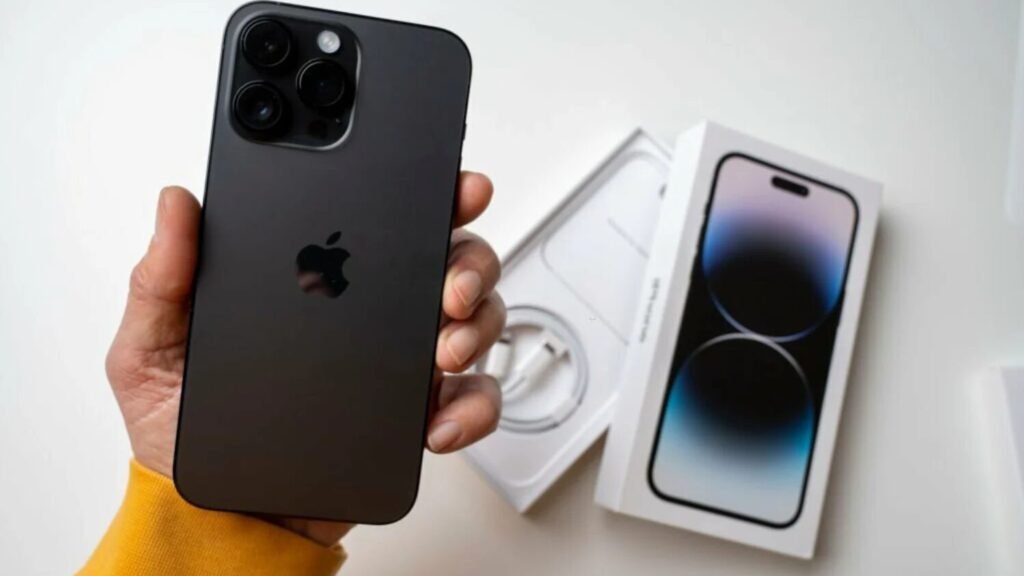
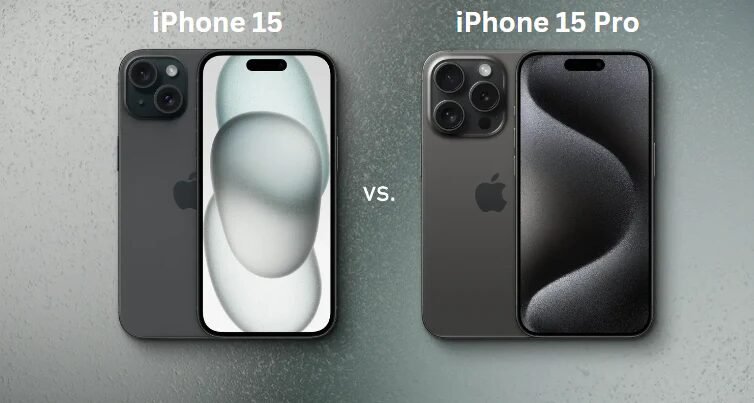
 iPhone pallets
 MacBook Pro Pallet
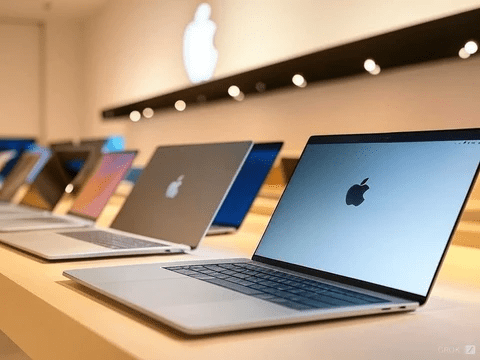
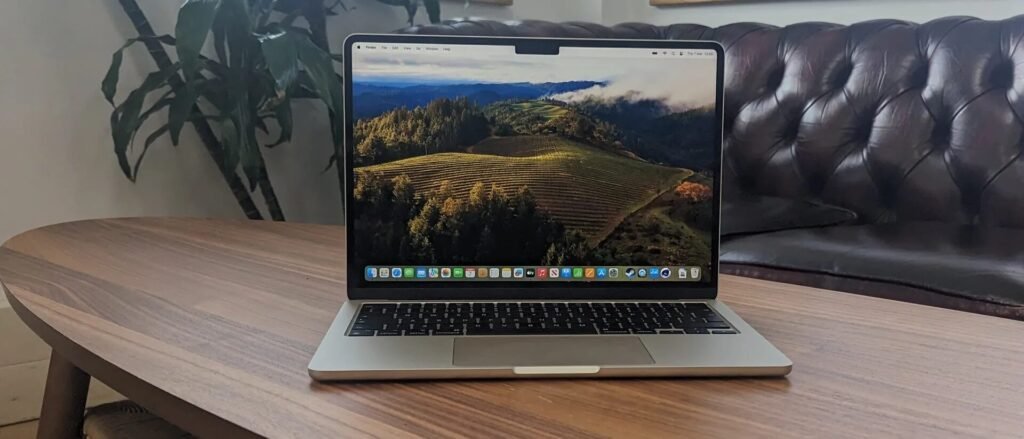
 Macbook Air pallet


 AirPods max pallet
 Apple Airpods Pallets
 Phone Cases Pallets
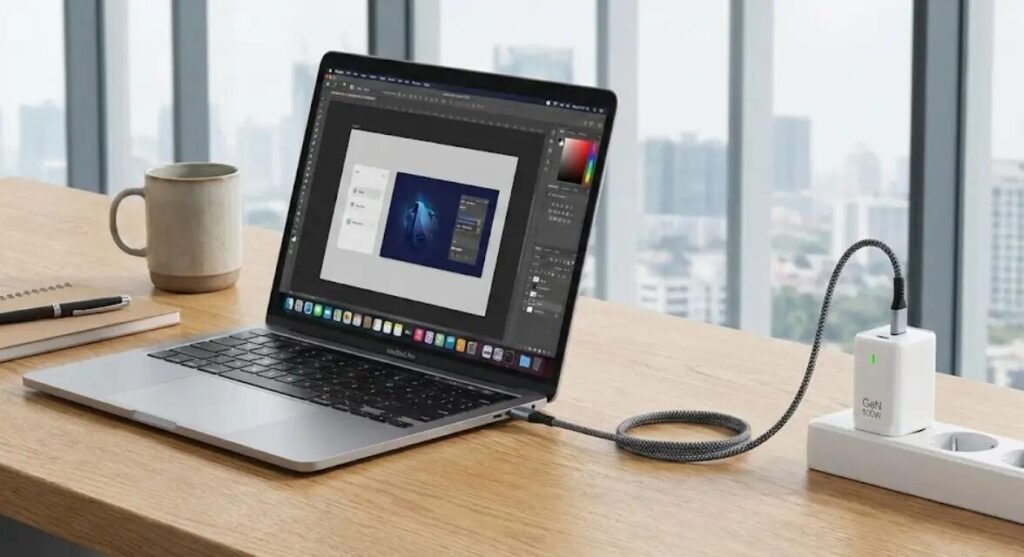
 Fast Chargers








Selling a used laptop represents a smart way to fund your next purchase. Private information on the drive creates significant risk. Most users treat laptops as digital safes for bank details, personal photos, and login credentials. Removing these files requires more than dragging folders to the trash bin. A full wipe ensures the next owner starts with a clean slate. Your identity stays protected through this process. This guide explains exact steps to handle this task effectively. Expert knowledge ensures the hardware remains valuable and safe for the next user.

Preparing for how to reset macbook air
Preparation prevents the loss of important files. Start by creating a full backup of everything stored on the internal drive. Apple offers built-in tools like Time Machine which simplify this task. Plug in an external hard drive and let the system copy your data. Alternatively, upload documents to a cloud service. Users often forget to check the Downloads folder or Desktop for loose files. Verify all precious memories and work documents reside safely on the backup drive before proceeding.
Signing out of linked accounts remains the next vital step. Apple links your hardware to your Apple ID through several services. Open the System Settings and click on your name to access iCloud settings. Turn off Find My Mac to remove the activation lock. This step is critical because a new buyer cannot set up the laptop if activation lock stays active. Disconnecting these links protects your personal cloud data from unauthorized access.
Visit the official Apple Support page regarding iCloud sign out for a complete list of accounts to disconnect.
Modern device maintenance with Erase Assistant
Modern MacBooks featuring Apple Silicon or the Apple T2 Security Chip offer a simplified reset path. This tool functions similarly to the reset option on an iPhone. The system wipes the data while keeping the operating system intact. This method saves time during device maintenance since you do not need to reinstall macOS from scratch. Users find this approach intuitive and fast.
Follow these steps for a quick reset:
- Click the Apple menu in the corner of the screen.
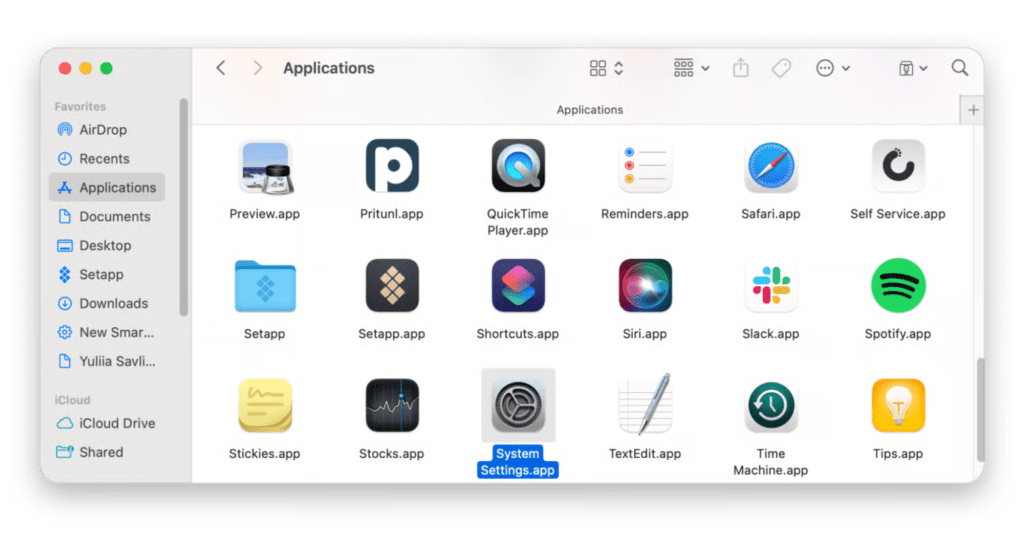
- Select System Settings.
- Choose General in the sidebar.
- Click Transfer or Reset on the right side.
- Select Erase All Content and Settings.
The Erase Assistant guides the user through the remaining prompts. The software asks for administrator credentials before proceeding. The laptop restarts and displays a black screen or a progress bar. Once the process finishes, the setup assistant appears. Leave the laptop at this screen for the new buyer. This state allows the recipient to choose their language and region settings.
Learn more about the official Erase Assistant on the Apple Support site.
Manual factory reset tutorial for Intel models
Older models require a different approach involving macOS Recovery. This manual process takes longer but provides a deep clean for the storage drive. You will need a stable internet connection for the laptop to download necessary system files during the reinstallation phase. Physical connections often provide better stability than wireless ones during large downloads.
Use this sequence for older hardware:
- Shut down the laptop completely.
- Press the power button then immediately hold Command and R keys.
- Release the keys when the Apple logo appears.
- Select Disk Utility from the Recovery window.
- Locate the internal drive labeled Macintosh HD and click Erase.
- Choose APFS as the format and click Erase Volume Group.
- Quit Disk Utility once the wipe finishes.
- Select Reinstall macOS from the main menu.
The laptop downloads the original software. This ensures the machine remains functional for the next user. Ensure the power cable stays connected throughout this procedure to prevent a shutdown. Sudden power loss during a reset causes software corruption.
Why secure data removal matters for sellers
Data privacy should never be an afterthought. Simply deleting files leaves traces which recovery software finds easily. A factory reset encrypts or overwrites the storage space. This makes previous information unreadable. For business owners and professionals handling client data, this level of security remains a legal requirement in many industries. High standards of privacy protect both the buyer and the seller.
Protecting your reputation as a seller also depends on a clean handoff. A laptop which still requires your password or shows your name on the login screen frustrates buyers. Providing a device which feels brand new out of the box builds trust. This trust is vital when selling through platforms or to premium buyers. Professionals prefer devices ready for immediate deployment.
Refer to Macworld for additional insights on deep data cleaning.
Common Apple laptop troubleshooting during reset
Errors sometimes occur during the wipe process. A common issue involves the laptop failing to enter Recovery Mode. This often happens due to timing. If the Apple logo appears before the user holds the keys, restart and try again. For Intel MacBooks, ensure the keyboard works properly as a faulty key prevents the command from registering. Patience resolves most timing issues.
Internet errors during reinstallation also cause delays. If the laptop shows a globe icon with a warning sign, check the Wi-Fi connection. Using an Ethernet adapter provides a more stable path for large file downloads. If the drive refuses to erase, check if FileVault disk encryption is active. Turn off FileVault in settings before starting the reset to avoid permission blocks.
Table: Troubleshooting Summary
| Error Code or Symptom | Likely Cause | Recommended Action |
|---|---|---|
| Activation Lock Active | Find My Mac is still on | Sign out of iCloud on another device |
| Folder with Question Mark | No operating system found | Use Recovery Mode to reinstall macOS |
| Disk Erase Failed | FileVault is active | Disable encryption in Security settings |
| Slow Download | Weak Wi-Fi signal | Move closer to router or use Ethernet |
Finding your next device at Prime iPhones Distributor
Once the old MacBook Air is ready for its next home, finding a replacement becomes the priority. Upgrading to a newer model offers better battery life and faster processing speeds. Whether you need a single unit for school or want to browse the Shop for bulk options, choosing a reliable source ensures quality. Prime iPhones Distributor specializes in premium Apple electronics.
The inventory includes the latest releases alongside certified options for every budget. Business owners looking for Laptops/Macbooks in larger quantities find tailored solutions through wholesale programs. The team provides the expertise needed to match your workflow with the right hardware. Investing in the right tools increases productivity and long term satisfaction.
Contact our specialists today to discuss trade in options or to find your next productivity tool. Visit our physical locations to see the quality firsthand by checking Our Stores page for a location near you.